
ODBC is a great alternative to import data into SAP Business One. The ODBC allows you to store your client’s data in a database table and then you can use ODBC to fill the relevant SAP Business One tables without the need to use the DTW templates
- Configure a new ODBC data source:
- Open ‘ODBC Data Source Administration’ via Start -> Control Panel -> Administrative Tools -> Data Sources (ODBC)
- Select the ‘User DSN’ tab and click on the Add Button
- In the ‘Create New Data Source’ window choose ‘SQL Server’ from the drop down list and click Finish
- Provide a Name for this DS (Data Source) and the Server name you want to connect to
- Click Next and select database authentication
- Click Next and select the checkbox ‘Change the default database to’ and provide the correct database name you will connect to via the DTW
- Click Finish
- When the Setup Window appears with a summary click ‘Test Data Source’ to ensure the connection succeeds
- DTW Steps
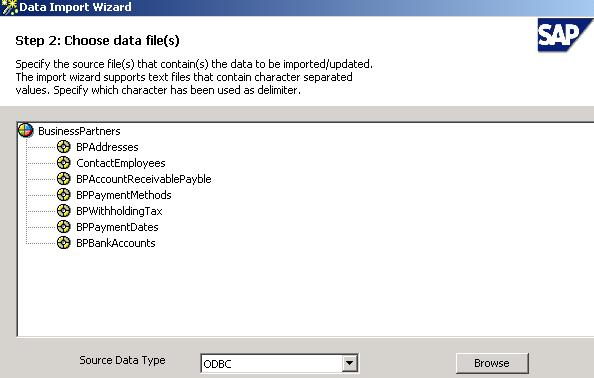
In Step 2 of the Data Transfer Workbench Wizard select ‘ODBC’ from the Source Data Type combo box. This will then open up the ‘Extract by ODBC’ window.
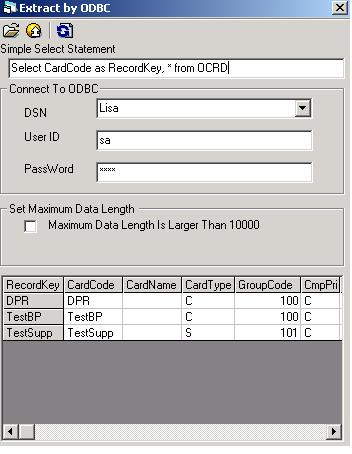
- DSN – the name of the ODBC data source set up in Step 1
- User ID – the DBUser used in the data source which is normally ‘sa’
- Password – the ‘sa’ password
- Simple Select Statement – the SQL statement to extract the database from the database table
- If the data files contain both header and item information, you must define the primary keys – that is why in our example we set CardCode as RecordKey.
- If the data file contains only header files you do not need to define the primary key. oChartOfAccounts is an example of this object.
- The maximum data length is set to 10000. Select the “Maximum Data Length Is Larger Than 10000” checkbox and enter the maximum
length in the textbox if you have a lot of text in a certain field e.g Remarks.
Continue with each step of the DTW wizard as normal to import or update the data.
- Additional Information
Currently DTW does not support importing ODBC via a Scheduled Run.
For each database you wish to connect to you need to set up a separate ODBC data source.